Pull every image out of a Doc or Slides deck. Rename in bulk, convert to WebP or AVIF, keep the alt text.
By Noman Ahmed · Updated November 6, 2026 · 4 min read
Google Docs does not export images as WebP. You can convert images manually with a third-party converter, or in your browser with Pluckr.
In a Pluckr test, a 796 KB PNG from a Google Doc became an 83 KB WebP at quality 80, about 90 percent smaller. Pluckr costs a one-time $12.
Convert Google Docs images to WebP because WebP files are much smaller than PNG files at a similar visual quality. Smaller images help your Largest Contentful Paint score, save bandwidth for your visitors and fit CMS upload limits. Google Docs stores most pictures as PNG or JPEG files, so the saving is often large.
| One test image from a Google Doc | File size | Smaller than the PNG |
|---|---|---|
| PNG | 796 KB | - |
| JPEG | 104 KB | 87 percent |
| WebP at quality 80 | 83 KB | 90 percent |
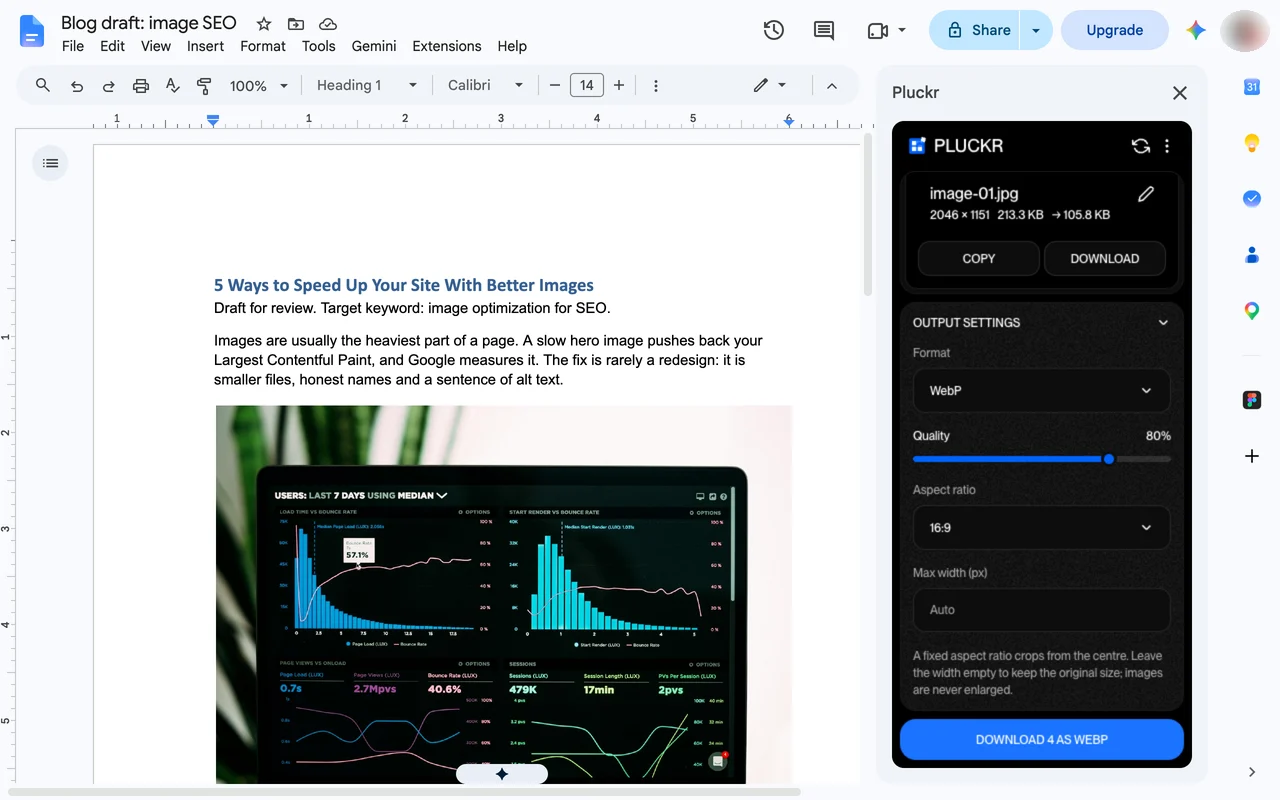
The saving depends on the image. In a second Pluckr test, a 213.3 KB image became a 105.8 KB WebP, about 50 percent smaller.
You can convert Google Docs images to WebP for free with the built-in zipped web page download and an online converter such as Squoosh. The method needs no install, but it takes several steps and the files have generic names. Some online converters upload your pictures, so check the policy of the site first.
Pluckr converts Google Docs images to WebP inside the Doc, so you do not upload files to a converter. You can preview, rename and resize every image, and Pluckr shows the converted size before you download. Every picture converts locally in your browser, and Pluckr never uploads your images to external servers.
Both methods produce WebP files. An online converter is free, but it works outside your Doc and you rename the files by hand. Pluckr costs $12 once and adds batch conversion, bulk renaming, a maximum width, an aspect-ratio crop and alt text export in one sidebar inside Google Docs.
| Feature | Manual Online Converter | Pluckr |
|---|---|---|
| One-click batch conversion | No | Yes |
| Client-side conversion privacy | Depends on the site | Yes |
| Bulk rename files | No | Yes |
| Set maximum width | No | Yes |
| Crop to aspect ratio | No | Yes |
| Export alt text as metadata | No | Yes |
| Cost | Free | $12 once |
No. Google Docs downloads documents in formats such as PDF, Word, EPUB, Markdown and zipped HTML. None of these formats gives you WebP image files.
WebP at quality 80 is lossy, so keep your originals. In a Pluckr test at quality 80, a 796 KB PNG became an 83 KB WebP and kept its sharp look.
Yes. In Output settings, you can choose AVIF, WebP, JPEG, or PNG. Pluckr handles AVIF encoding client-side in the browser.
No. All conversion runs on your computer inside your web browser. Your document images stay completely private.
Google Docs has no button to save all images. Learn four ways to download every image from a Google Doc, and what each method costs you.
November 6, 2026 · 5 min read
Google Docs Markdown export embeds images as base64 strings. Learn how to export clean content.md files with an images folder.
November 6, 2026 · 4 min read
A side-by-side look at the zipped web page, the Word trick, an Apps Script and Pluckr for getting images out of a Google Doc.
November 6, 2026 · 3 min read
Pull every image out of a Doc or Slides deck. Rename in bulk, convert to WebP or AVIF, keep the alt text.
