Pull every image out of a Doc or Slides deck. Rename in bulk, convert to WebP or AVIF, keep the alt text.
By Noman Ahmed · Updated November 6, 2026 · 5 min read
Google Docs has no button to save all images at once. You can use four methods to download every image from a Google Doc.
The free methods give generic file names. Pluckr lists every picture, renames and converts them, and saves one ZIP for a one-time $12.
Google Docs has no button to download all images, because its File menu only exports the whole document. You can still save every image from a Google Doc with four methods: a zipped web page, a Word file, an Apps Script, or the Pluckr add-on. None of the four methods needs you to publish the Doc.
If you only need to save a single image from a Google Doc, right-click the picture and choose Save to Keep.
The zipped web page method saves every image from a Google Doc for free, with nothing to install. Google Docs exports the document as an HTML file and puts the pictures in an images folder inside a ZIP. The files get generic names such as image1.png, and the folder sits next to an HTML file.
The Word method also gets every image from a Google Doc for free. A .docx file is a ZIP archive, so you can rename the download to .zip and open the word/media folder. The images are plain files with generic names, and the rename step is harder on Windows, where file extensions can be hidden.
An Apps Script is a short program that loops over a Google Doc and saves each image to Google Drive. The method is free and repeatable, but you paste the code and authorize it yourself, and you get no preview and no resizing. Amit Agarwal’s guide on Digital Inspiration shows a fuller version. The core idea looks like this:
function saveImages() {
  const images = DocumentApp.getActiveDocument().getBody().getImages();
  const folder = DriveApp.createFolder('Doc images');
  images.forEach((img, i) =>
    folder.createFile(img.getBlob().setName('image-' + (i + 1))));
}Pluckr is a Google Docs add-on that lists every image in a Doc with its size and dimensions, including images in tables and other tabs, and shows a preview of each image that you use. You rename the images, then download one image or a ZIP of all images. Pluckr is free for up to 50 images per Google account, in total, and Pro costs $12 once.
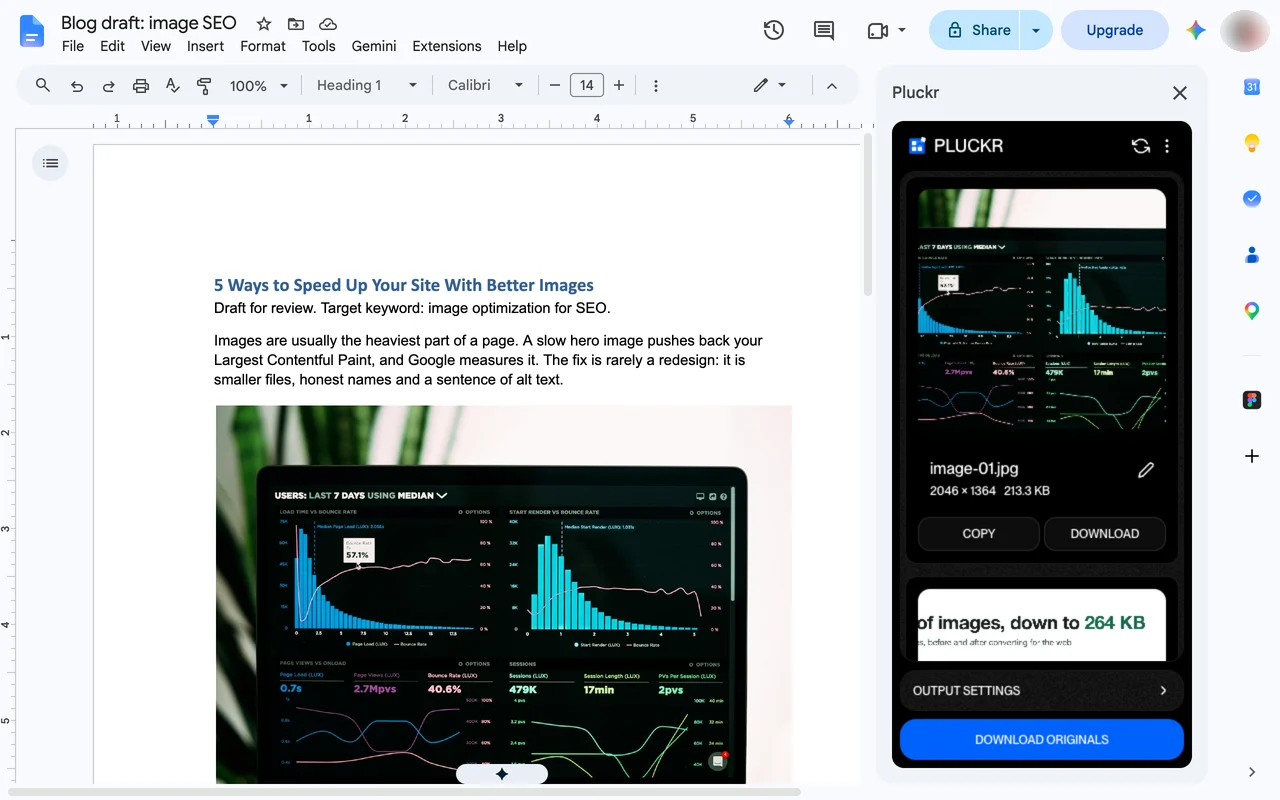
You can read how Pluckr handles converting images to WebP or AVIF or exporting a Doc to Markdown with images.
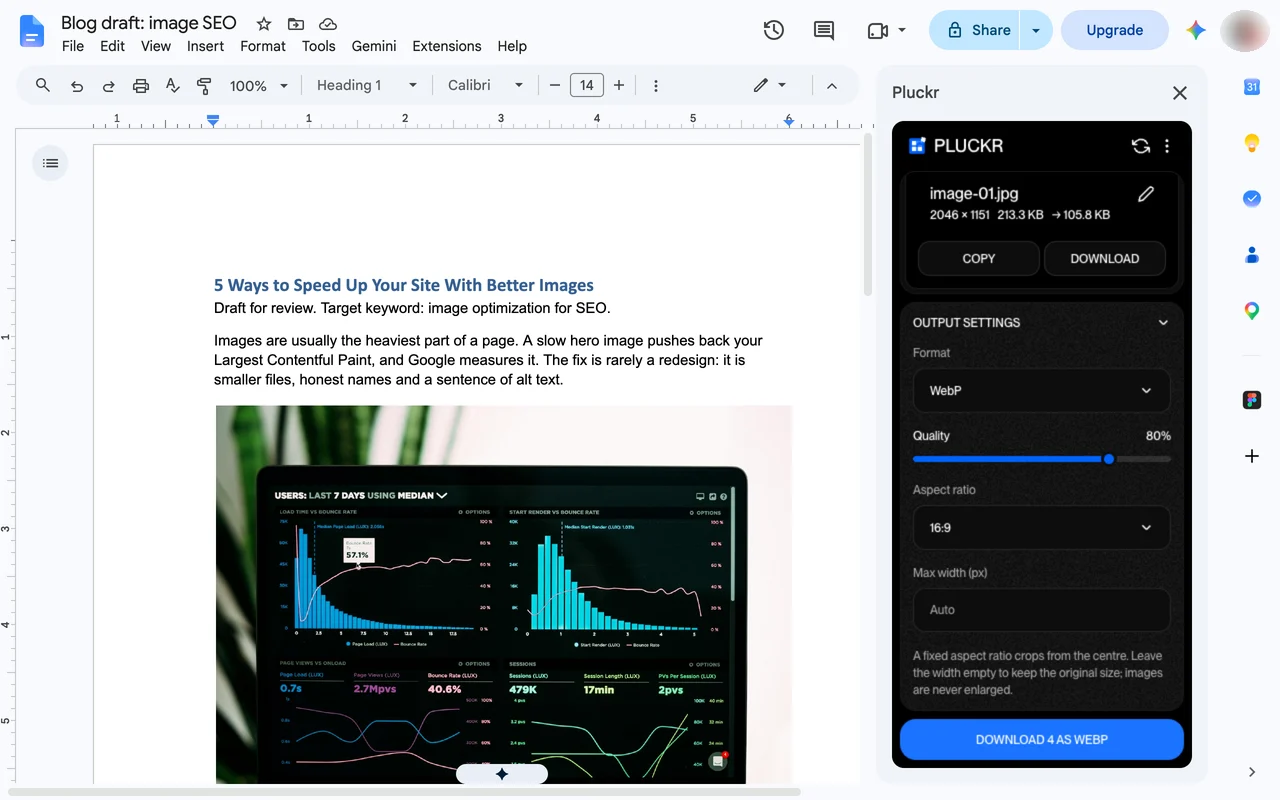
Use the zipped web page for one Doc, once, because it is free and needs no install. Use an Apps Script if you like scripts and do this task often. Use Pluckr for many Docs, or when the images need good names, a smaller format such as WebP, or a fixed shape.
| Feature | Web page (.zip) | Word (.docx) | Apps Script | Pluckr |
|---|---|---|---|---|
| Cost | Free | Free | Free | Free for 50 images per account, then $12 once |
| See the images before you save | No | No | No | Yes |
| Choose the file names | No | No | In the code | Yes |
| Convert to WebP or AVIF | No | No | No | Yes |
| Nothing to paste or authorize | Yes | Yes | No | Yes |
Give the files descriptive names before they go on a website, because image names are one of the things search engines read. Keep the originals somewhere, since converting to a lossy format cannot be undone. And write alt text where the image is published. The file name is not a substitute for it.
Right-click the image and choose Save to Keep. Right-click the picture in the Keep sidebar to save it to your computer. With Pluckr, you can click Download next to any image in the sidebar.
No. None of these methods needs you to publish the Doc.
For a single Doc, the zipped web page download. For many Docs, or when you also want to rename or convert the images, Pluckr.
Yes. It lists images in tables and in other document tabs.
Docs uses generic names when it exports a document. Pluckr lets you rename each image before you download it.
With the manual methods you need a separate converter. Pluckr converts to WebP, AVIF, JPEG or PNG in the same sidebar.
Not in Pluckr yet. It reads inline images. Images set to float in front of or behind text are not listed.
Google Docs does not export WebP images. Learn how to convert document images to WebP or AVIF without external upload tools.
November 6, 2026 · 4 min read
Google Slides has no button to save images. Learn three ways to extract all pictures from a presentation as a ZIP file.
November 6, 2026 · 4 min read
A side-by-side look at the zipped web page, the Word trick, an Apps Script and Pluckr for getting images out of a Google Doc.
November 6, 2026 · 3 min read
Pull every image out of a Doc or Slides deck. Rename in bulk, convert to WebP or AVIF, keep the alt text.
