Pull every image out of a Doc or Slides deck. Rename in bulk, convert to WebP or AVIF, keep the alt text.
By Noman Ahmed · Updated November 6, 2026 · 4 min read
Google Slides has no button to save one picture or all slide images. The free options are the PowerPoint ZIP trick and Google Keep.
Pluckr downloads every picture in one ZIP, including pictures in groups, for free, up to 50 images per Google account. Pro adds bulk renaming and WebP or AVIF conversion for a one-time $12.
Google Slides has no Save Image As option when you right-click a picture, and File > Download exports the full slide as a PNG, JPEG or PDF. A screenshot or a full-slide export lowers the resolution and captures text boxes over the photo. The three methods below extract the original image files.
A PowerPoint (.pptx) file is a ZIP archive, so you can extract every Google Slides picture at full resolution for free. Download the deck as a PowerPoint file, rename it to .zip and open the ppt/media folder. The files get generic names like image1.png, and Windows or macOS can hide the file extension.
.pptx to .zip.Google Keep is the free way to save one or two pictures from a Google Slides deck. Right-click a picture, send it to the Keep side panel, and save it from there. The method needs no file renaming, but you repeat it for each image, and grouped pictures need ungrouping first.
Pluckr opens a sidebar inside Google Slides and lists every picture across every slide in order, including pictures inside groups. You see the pixel dimensions and the file size of each picture, and a preview of each picture that you use, then download all pictures in one ZIP. Pluckr is free for up to 50 images per Google account, in total, across all of your Docs and decks.
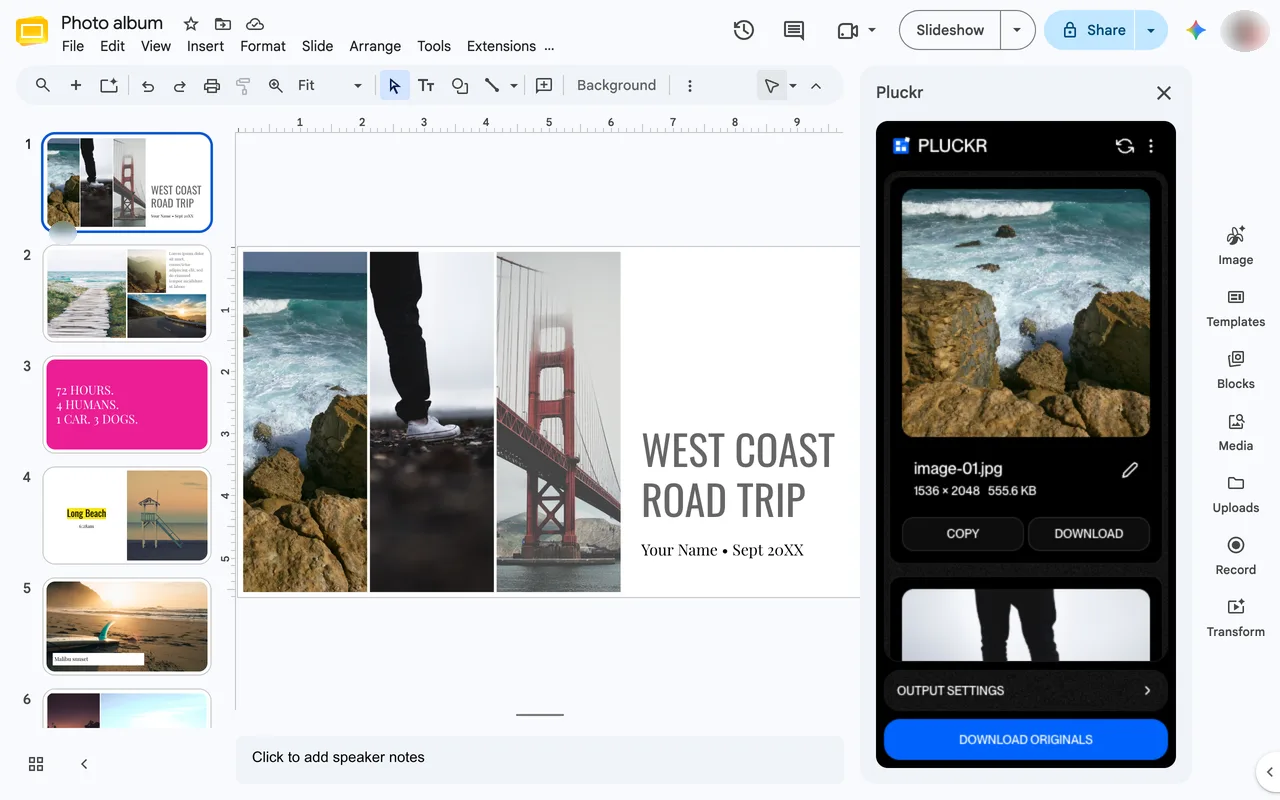
Pro costs $12 once and unlocks bulk file patterns like {deck}-{n}, alt text editing, and conversion to WebP or AVIF.
The PowerPoint ZIP gets every slide image for free, but it needs a file rename and gives generic names. Save to Keep is free but handles one image at a time. Pluckr downloads all images with previews, including grouped pictures, and Pro adds bulk renaming and WebP or AVIF conversion for $12 once.
| Feature | PowerPoint (.pptx) ZIP | Save to Keep | Pluckr |
|---|---|---|---|
| Download all slide images at once | Yes | No | Yes |
| See image previews before saving | No | Yes | Yes |
| Read pictures inside slide groups | Yes | No | Yes |
| Bulk rename files by pattern | No | No | Pro ($12 once) |
| Convert to WebP or AVIF | No | No | Pro ($12 once) |
| No file extension rename needed | No | Yes | Yes |
| Cost | Free | Free | Free for 50 images per account |
You can download the presentation as a PowerPoint (.pptx) file, rename it to .zip, and open the ppt/media folder. Or you can use the Pluckr add-on to download all slide pictures as a ZIP in one click.
The File > Download > PNG image command in Google Slides exports the entire slide canvas. To save a single image, right-click the picture and choose Save to Keep, or extract the original file with Pluckr.
Yes. Pluckr scans every slide in order and reads pictures placed inside groups without ungrouping them on your slide.
No. Extracting and converting images only reads your presentation. Pluckr changes your deck only when you save alt text or run the in-deck Optimize tool.
Yes. One $12 purchase unlocks Pro features for your Google account across both Google Docs and Google Slides.
Google Docs has no button to save all images. Learn four ways to download every image from a Google Doc, and what each method costs you.
November 6, 2026 · 5 min read
Google Docs does not export WebP images. Learn how to convert document images to WebP or AVIF without external upload tools.
November 6, 2026 · 4 min read
Pull every image out of a Doc or Slides deck. Rename in bulk, convert to WebP or AVIF, keep the alt text.
